Color Settings
Rules
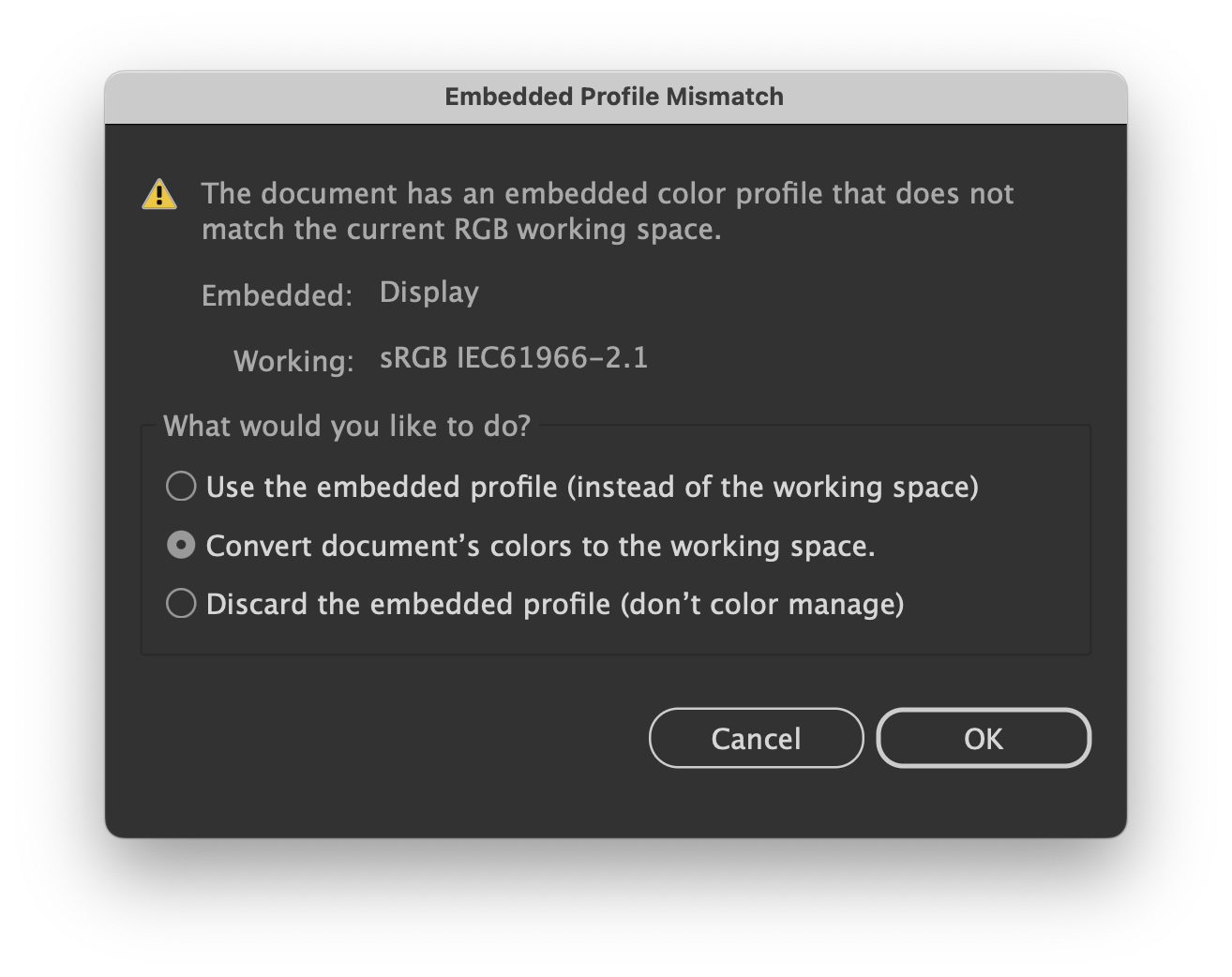
- If the document you are opening does NOT have an embedded color profile, you must Assign one (either US Web Coated SWOP v2 or sRGB depending on the prompt you are given)
- If the document you are opening has an embeddeed color profile that is NOT sRGB or US Web Coated SWOP v2, you must Convert the document to the desired profile, NOT Assign it
Resources
- Current Color Profile (Photoshop)
In the bottom left corner, click on the arrow and choose Document Profile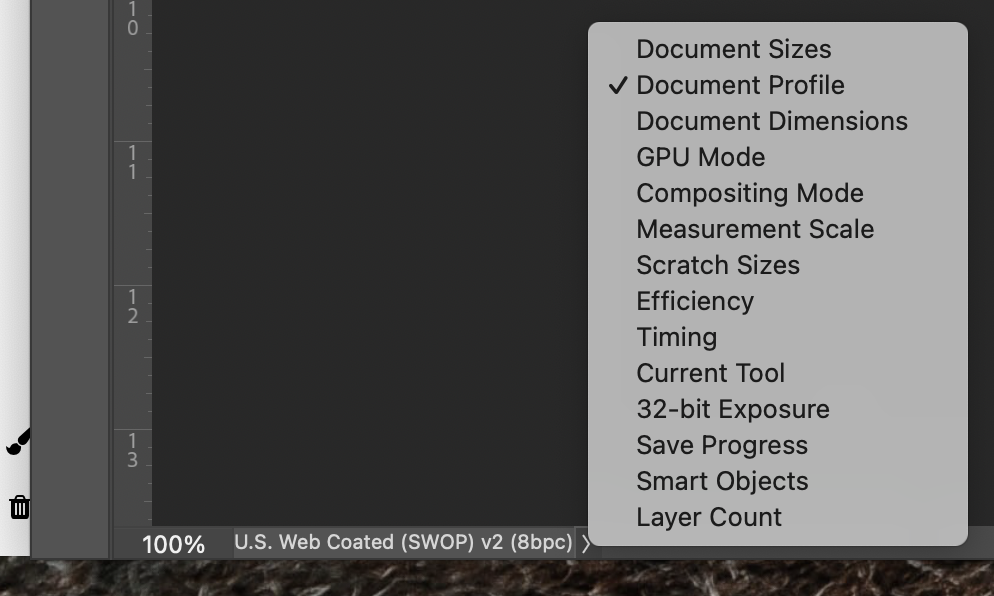
- How to Convert the Color Profile
Photoshop > Edit > Convert to Profile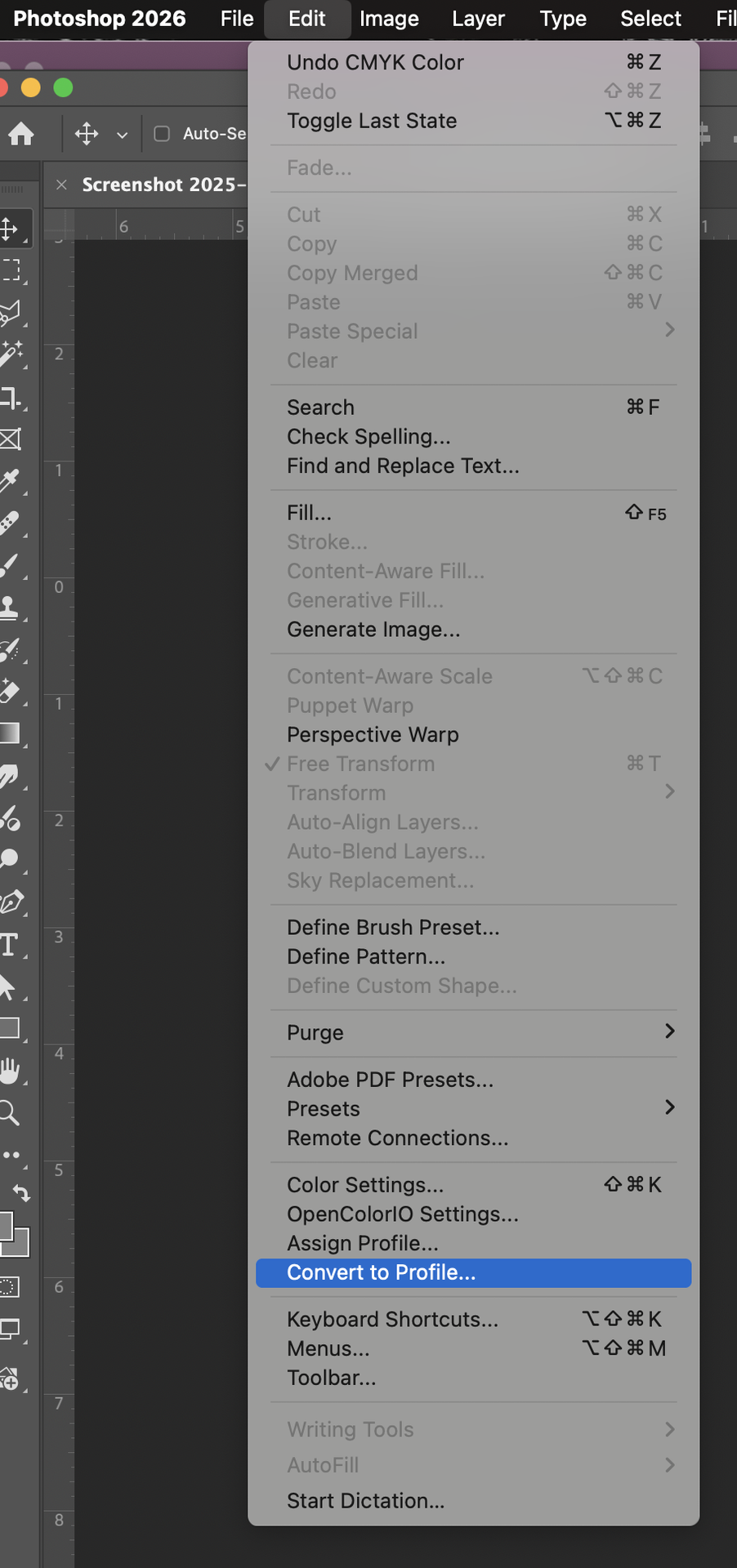
- Examples of Color Profile Pop Ups
Photoshop Settings
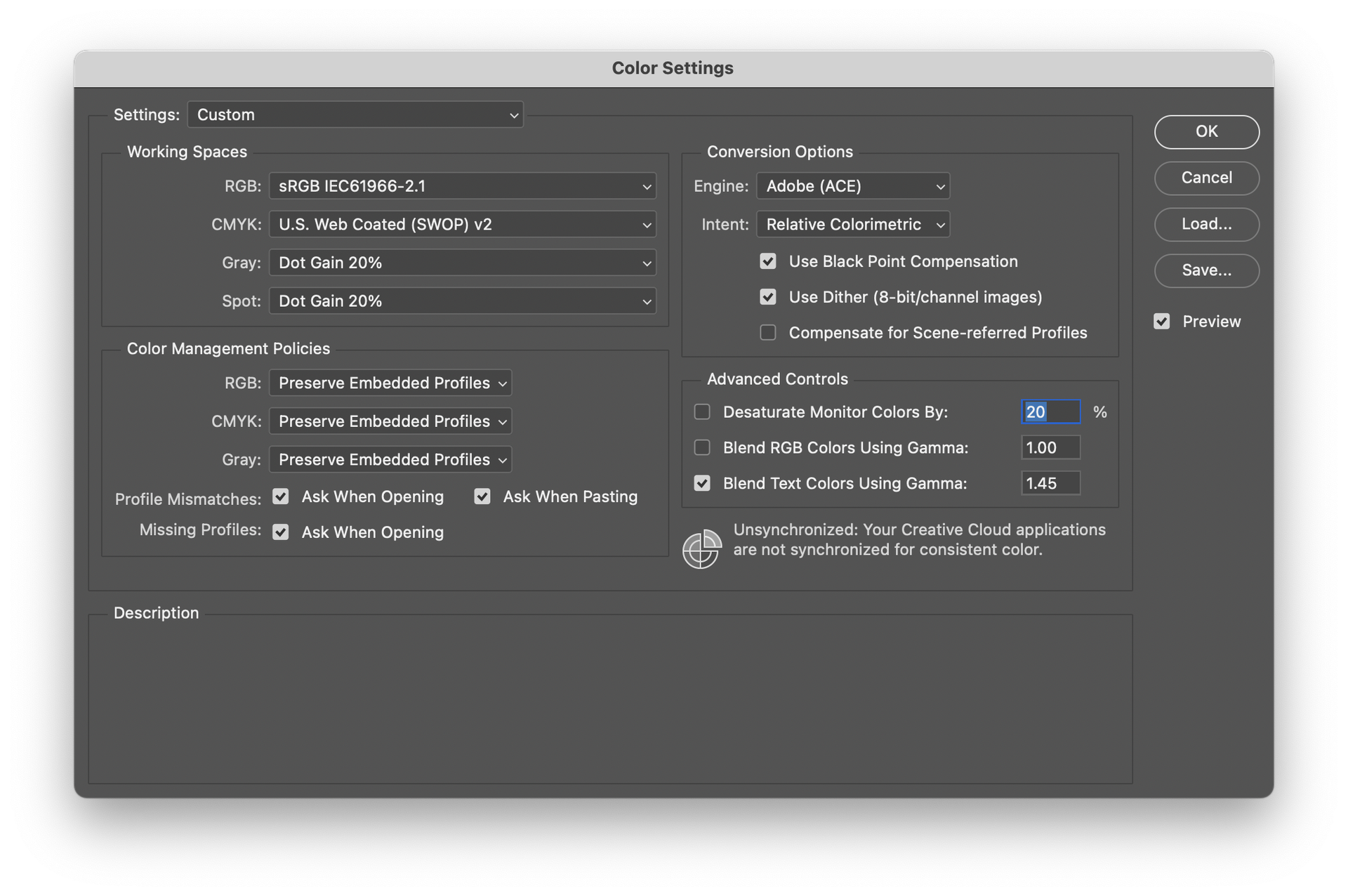
Photoshop > Edit > Color Settings
Working Spaces > RGB: sRGB
Working Spaces > CMYK: U.S. Web Coated (SWOP) v2
Color Management Policies > RGB: Preserve Embedded Profiles
Color Management Policies > CMYK: Preserve Embedded Profiles
Color Management Policies > Gray: Preserve Embedded Profiles
Working Spaces > CMYK: U.S. Web Coated (SWOP) v2
Color Management Policies > RGB: Preserve Embedded Profiles
Color Management Policies > CMYK: Preserve Embedded Profiles
Color Management Policies > Gray: Preserve Embedded Profiles
IMPORTANT: Make sure all Profile Mismatches and Missing Profiles boxes are checked
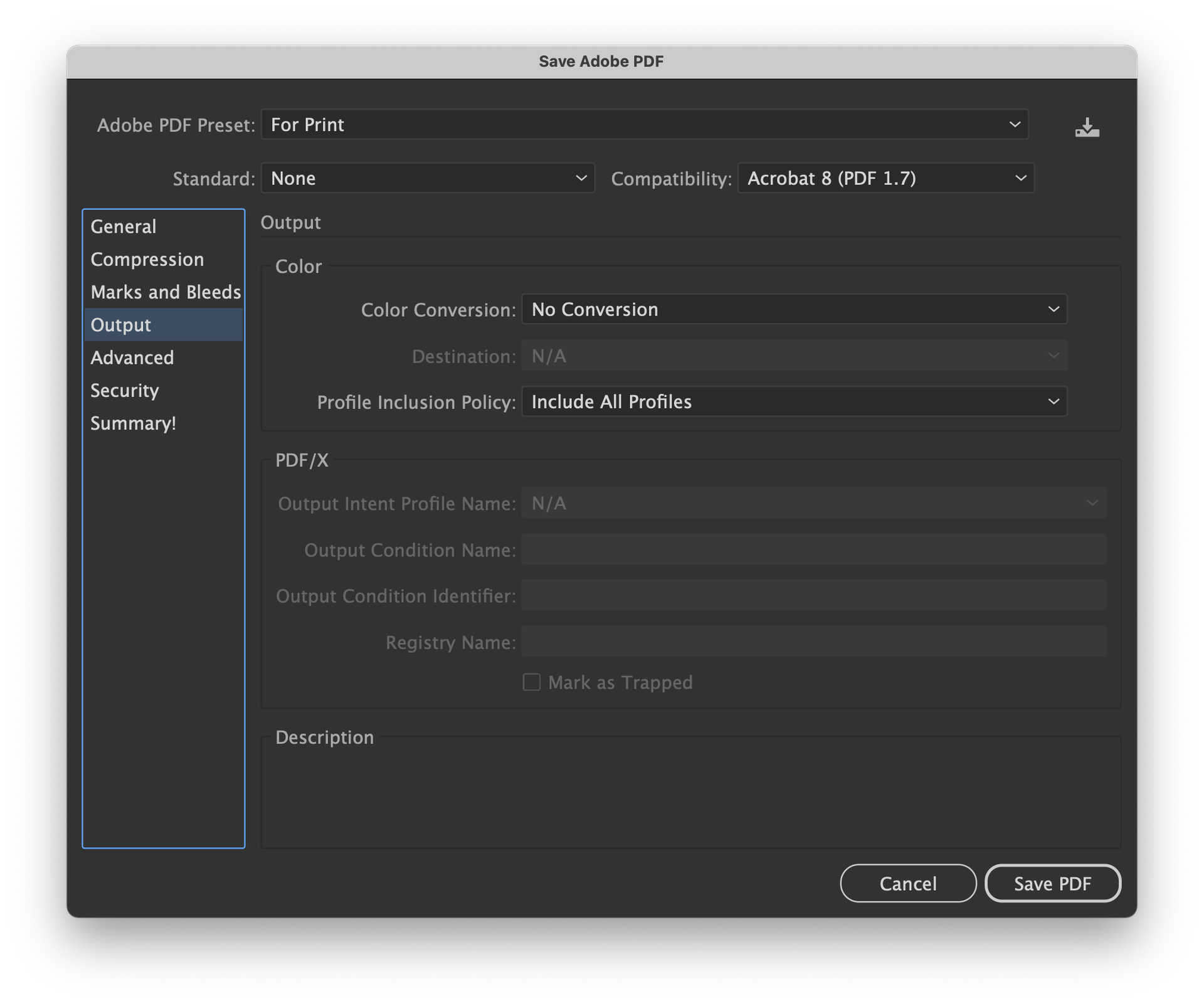
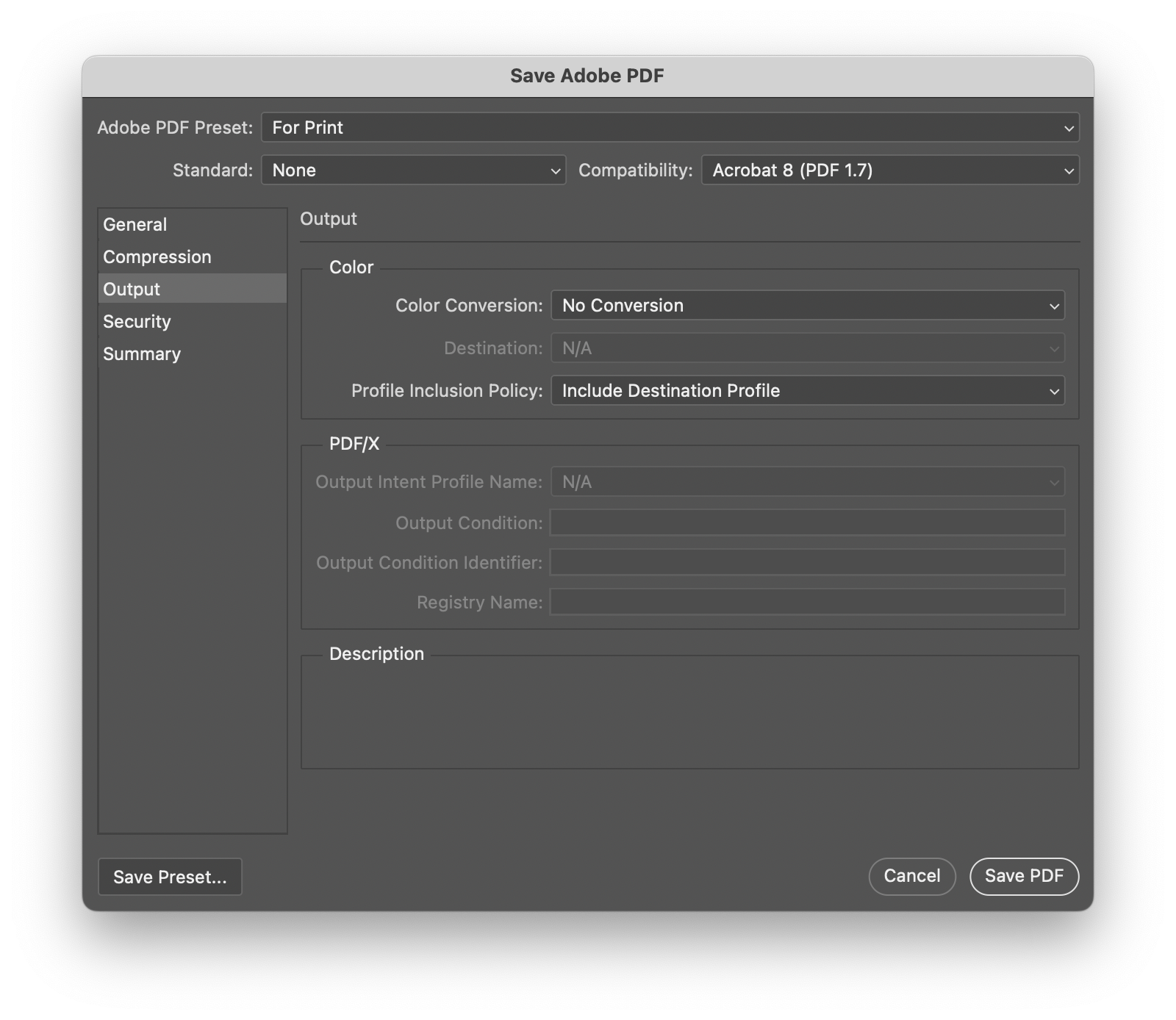
Photoshop PDF Save Settings
Compatibility: Acrobat 8
Output > Profile Inclusion Policy: Include Destination Profile
NOTE: You can save this as an Adobe PDF Preset (I named it "For Print", but you can name it whatever you want)
Output > Profile Inclusion Policy: Include Destination Profile
NOTE: You can save this as an Adobe PDF Preset (I named it "For Print", but you can name it whatever you want)
Illustrator Settings
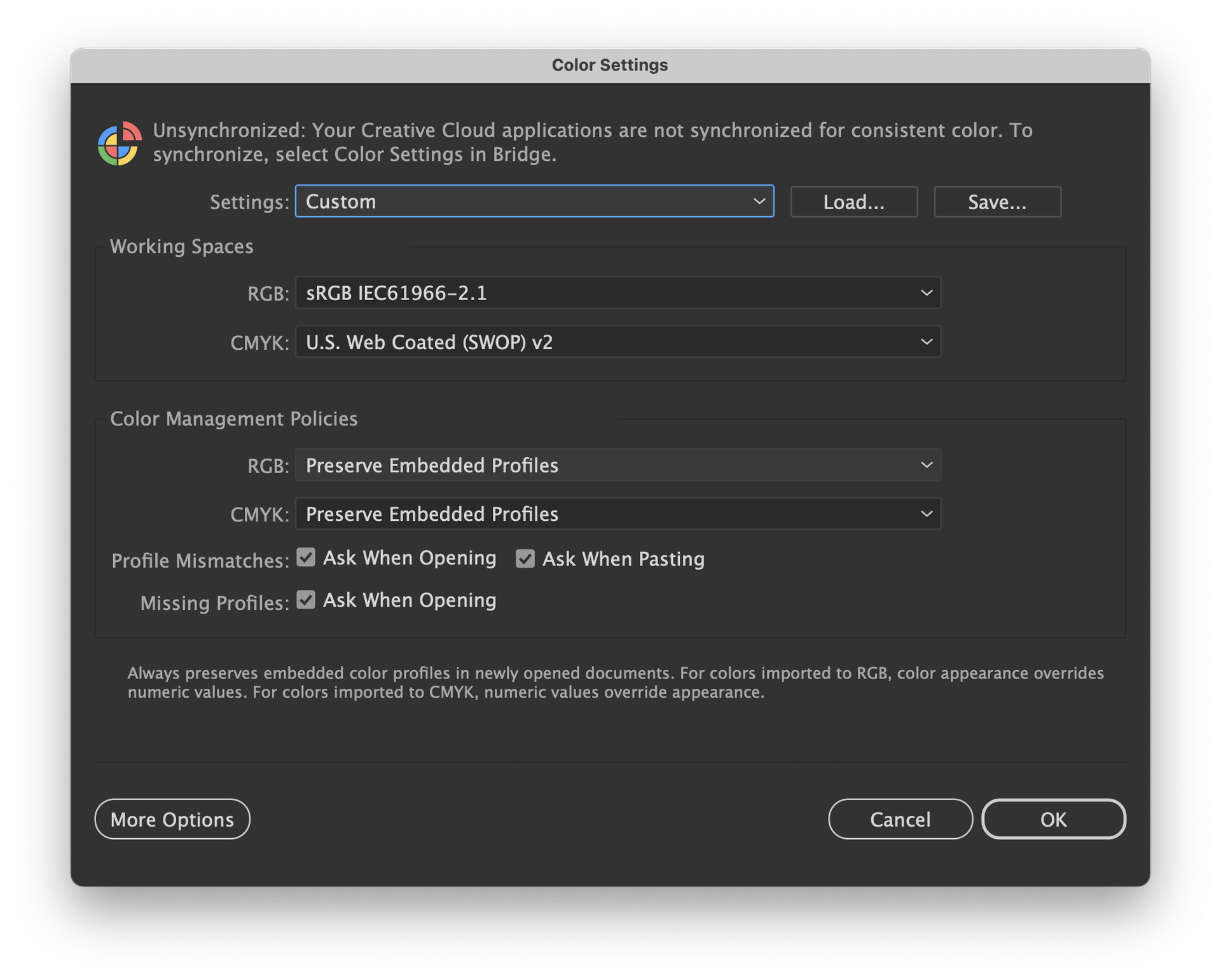
Illustrator > Edit > Color Settings
Working Spaces > RGB: sRGB
Working Spaces > CMYK: U.S. Web Coated (SWOP) v2
Color Management Policies > RGB: Preserve Embedded Profiles
Color Management Policies > CMYK: Preserve Embedded Profiles
IMPORTANT: Make sure all Profile Mismatches and Missing Profiles boxes are checked
Illustrator PDF Save Settings
Compatibility: Acrobat 8
Output > Profile Inclusion Policy: Include All Profiles
NOTE: You can save this as an Adobe PDF Preset (I named it "For Print", but you can name it whatever you want)
Output > Profile Inclusion Policy: Include All Profiles
NOTE: You can save this as an Adobe PDF Preset (I named it "For Print", but you can name it whatever you want)